
Best practices, Email Marketing, Pytania i odpowiedzi
Best practices, Email Marketing, Pytania i odpowiedzi
Mail merge combines a template document with data to create personalized communications.
This technique saves time by automatically generating individualized letters, emails, and labels without manual entry.
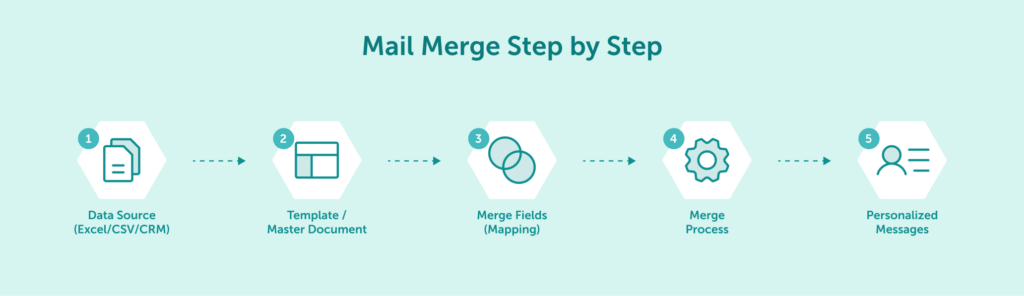
Mail merge is a feature that pulls data from a spreadsheet or database and inserts it into a template document. The process automatically creates multiple personalized copies of a document, each containing specific information for different recipients. Instead of manually typing names, addresses, and other details into dozens or hundreds of documents, mail merge handles these repetitive tasks in seconds.
The technology works by creating placeholders in your main document that correspond to columns in your data source. When you execute the merge, the software replaces each placeholder with the corresponding information for each recipient. The result is a set of documents that appear individually created despite being generated through automation.
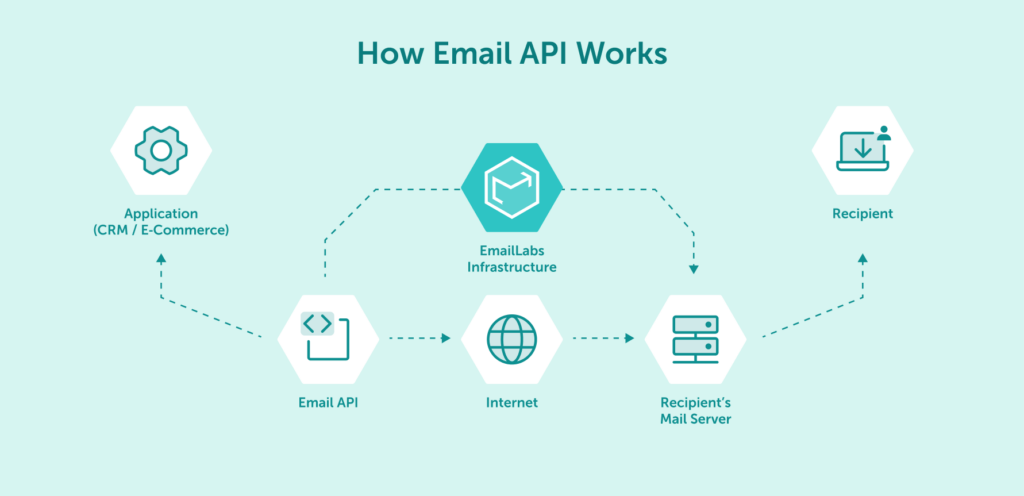
While the concept is often associated with office software like Microsoft Word, the principle of mail merge is the engine behind modern email automation. By 2025, this process has evolved significantly. Instead of a local document and spreadsheet, professional systems use server-side templates stored in the cloud. Data is then sent via an Email API, allowing applications to trigger highly personalized emails in real-time, a technique often called “programmatic” or “server-side mail merge.”
Mail merge functionality is available in most modern word processing software, including Microsoft Word, Google Docs, and specialized email marketing platforms. While the core concept remains the same across these platforms, each offers different features and workflows for implementing mail merges. Desktop tools like Word are excellent for basic use cases and smaller-scale operations, but as organizations scale and seek more automation and deliverability control, server-side mail merge via API becomes a natural next step.
Knowing the three key components of mail merge helps avoid errors and ensures successful results. Each element plays a specific role in the process, and problems with any component can affect the entire operation.
The main document serves as your template and contains fixed content plus placeholders for variable information. This document determines the overall layout, formatting, and static text that will appear in all copies after the merge. Creating a clear, well-designed template is the foundation of an effective mail merge.
Your main document can be a letter, email, envelope, label, or any other format that requires personalization. The document should be completely formatted before adding merge fields, including any logos, signatures, or design elements. This approach ensures consistency across all merged documents.
While the content varies depending on your specific needs, effective main documents typically include:
| Element | Purpose | Example |
|---|---|---|
| Header | Establishes identity | Company letterhead |
| Introduction | Sets context | Purpose statement |
| Body text | Delivers core message | Product information |
| Placeholders | Personalizes content | Name, address fields |
| Closing | Concludes communication | Call to action |
The data source contains all the variable information that will populate your template. This component is typically a spreadsheet or database where each row represents a recipient and each column contains a specific data point like name, address, or account number. The quality and organization of your data directly impacts the professionalism of your final documents.
Common data sources include Excel spreadsheets, CSV files, Outlook contacts, Access databases, and CRM system exports. Before starting a mail merge, verify that your data source contains all the information required by your template and that the data is properly formatted to avoid errors during the merge process.
Effective data sources typically include:
Merge fields are placeholders inserted into the main document that correspond to data columns. During the merge process, these fields get replaced with actual information from each record in your data source, creating individualized documents for each recipient. In most applications, merge fields appear with special formatting or syntax to distinguish them from regular text.
Microsoft Word displays merge fields with guillemets (« ») or curly braces, while other platforms may use different formatting such as square brackets or percent signs. When you insert these fields, you’re creating a connection between specific positions in your document and columns in your data source.
Beyond basic text insertion, modern merge fields can include formatting instructions or conditional logic. For example, you can format a number field to display as currency or set up rules to show different content based on values in your data source (like showing different product recommendations based on previous purchase history).
Mail merge solves problems across various business functions and industries. These practical applications demonstrate why mail merge remains relevant in 2025 despite advances in digital communication.
Business correspondence benefits greatly from mail merge capabilities. Companies send thousands of personalized letters daily – from welcome packages and policy updates to collection notices and contract renewals – all requiring customer-specific information merged with standardized text. Mail merge ensures these communications maintain consistency while including relevant personal details.
Financial institutions rely on mail merge for statements, tax documents, and notifications. Legal firms use it for client communications where specific case details must be integrated with standard legal language. Healthcare providers generate patient letters containing personal medical information within standardized templates. In all these cases, mail merge balances personalization with regulatory compliance.
The advantages of using mail merge for letters include:
| Benefit | How It Helps | Business Impact |
|---|---|---|
| Time savings | Eliminates manual typing | Reduced labor costs |
| Consistency | Standardizes messaging | Brand coherence |
| Accuracy | Reduces human error | Professional impression |
| Scalability | Handles volume efficiently | Operational flexibility |
| Personalization | Increases relevance | Better response rates |
Email marketing relies heavily on mail merge technology. Modern campaigns require personalization beyond just including the recipient’s name – they incorporate purchase history, browsing behavior, and demographic data to create highly targeted messages. Email platforms use advanced mail merge functionality to deliver these personalized experiences at scale.
While using a word processor for email campaigns is suitable for small, internal lists, it lacks the scalability, deliverability, and analytics required for professional marketing or transactional communication. This is where server-side mail merge systems, powered by an Email API, become essential. Platforms like EmailLabs allow users to create HTML templates directly on the server. Then, an application can send data for hundreds of recipients in a single API call, and the platform handles the merging and sending process reliably.
Typical merge fields used in email campaigns include:

Printing addresses on labels and envelopes remains one of the most practical applications of mail merge. Organizations that send physical mail can automatically generate hundreds or thousands of properly formatted mailing labels or envelopes directly from their contact database, saving countless hours of manual entry. This functionality is particularly valuable for event invitations, product shipments, and marketing materials.
Retail businesses use mail merge to create shipping labels for customer orders, automatically pulling addresses from their e-commerce platforms. Nonprofits generate donation acknowledgment envelopes and fundraising materials for their supporter databases. Educational institutions print envelopes for admissions materials and alumni communications. In each case, mail merge ensures accurate addressing while eliminating repetitive data entry.
To begin with mail merge, you’ll need the right tools for the job. Microsoft Outlook must be installed and configured with an active email account on your device to handle the email delivery aspect, as Word relies on Outlook’s infrastructure to send messages.
This guide focuses on Microsoft Word as it provides the most comprehensive mail merge functionality among word processors, though other tools like Google Docs (with appropriate extensions) work conceptually similarly, albeit with different interface terminology and workflows.
Before starting, verify your data source is properly structured with clear column headers and complete information. Each recipient needs a valid email address or your communications won’t reach them. Taking time to clean your data now prevents headaches later when you execute the merge.
Begin by setting up a document specifically formatted for email distribution:
This configuration optimizes your document for email delivery rather than print. Draft your message content with placeholders in mind for where personalized information will appear. Consider how the email will display on various devices and keep your formatting clean and mobile-friendly.
Connect your template to your recipient database next:
Check your data source first. Confirm it contains an email address column with valid entries for each recipient.
With your data ready:
After establishing this connection, save your document to preserve the link between your template and data source. This connection forms the foundation of your mail merge operation.
Add customized elements to make each email relevant to its recipient:
Thoroughly review your merge before sending:
Go to Preview Results and cycle through several records using Next or Previous to verify proper formatting and field placement.
When satisfied with the preview, select Finish & Merge > Send E-mail Messages.
Now all that’s left is to complete the final configuration:
The system will process your request and send personalized emails to each recipient in your selected range.
Consider sending to a small test group first before distributing to your entire list, especially for important communications or large recipient groups.
Maximize your email deliverability and security with EmailLabs!
Modern mail merge offers capabilities beyond basic personalization. These advanced features enable more sophisticated communications that adapt to recipient characteristics.
Looking ahead, emerging trends include AI-driven dynamic content generation that goes beyond simple field replacement to create entire personalized paragraphs based on customer data, and hyper-personalization that combines data from multiple sources in real-time via API to deliver highly relevant communications at scale.
Conditional content displays different text based on data values in your source. For example, shows premium offers only to top-tier customers or region-specific information based on location.
| Common Applications | Example |
|---|---|
| Customer segments | Different offers by tier |
| Purchase history | Product recommendations |
| Geographic targeting | Local event invitations |
Complex merges can combine information from separate databases by using common identifiers like customer ID. This eliminates redundant data while providing comprehensive personalization options.
This approach allows integration of recent transactions with contact information stored in separate systems, creating more relevant communications without maintaining duplicate records.
You can format how data appears in merged documents without changing source data using field codes and switches. Common formatting needs include capitalizing names, standardizing dates, or controlling number displays. Add these modifications by editing field codes directly.
Even well-planned mail merges encounter problems. Understanding these common issues helps you troubleshoot effectively.
Inconsistent data formats create unprofessional-looking documents. Phone numbers, dates, and addresses often appear in different formats within the same column.
Solutions:
Blank fields create awkward gaps in merged documents. Empty cells can lead to grammatical errors or incomplete information.
Quick fixes:
Mail merges often contain sensitive personal information requiring proper handling. Include only necessary data in your source file and restrict access to both input and output documents.
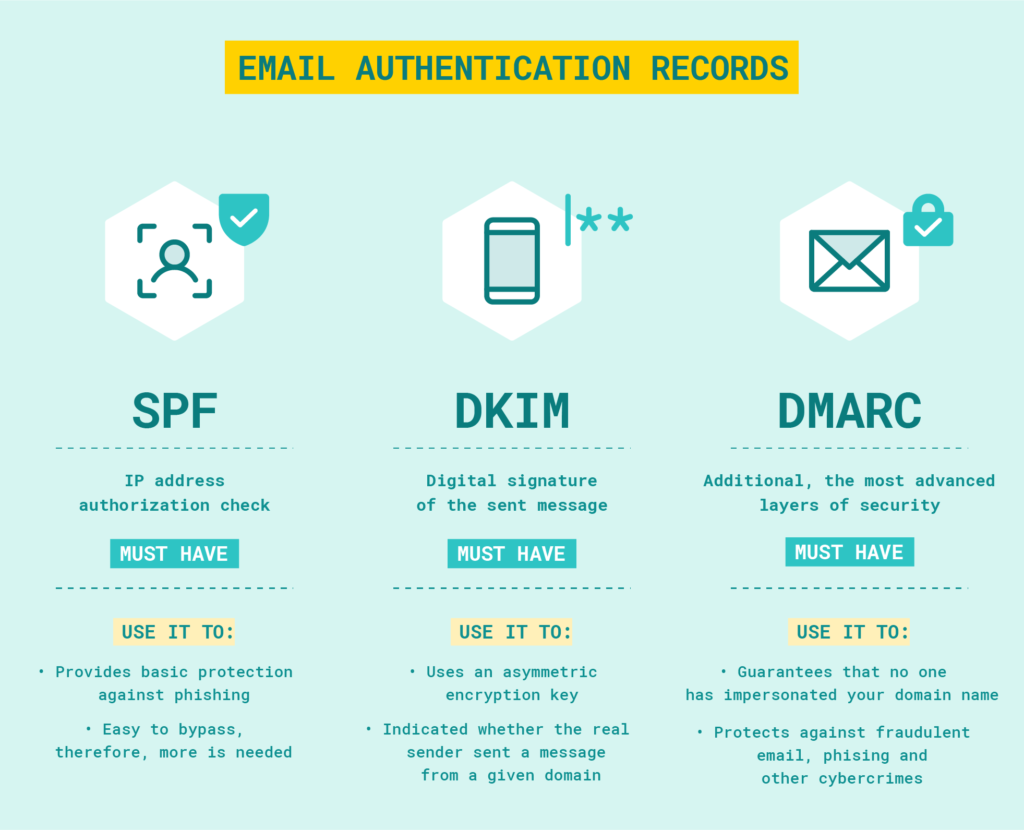
For email merges, use BCC fields when appropriate and comply with relevant privacy regulations like GDPR by including unsubscribe options and obtaining proper consent before sending marketing communications. When using server-side mail merge, ensure your provider stores and processes data within compliant infrastructure (e.g., GDPR-compliant EU servers) and supports authentication standards like SPF, DKIM, and DMARC to protect both your sender reputation and recipient security.
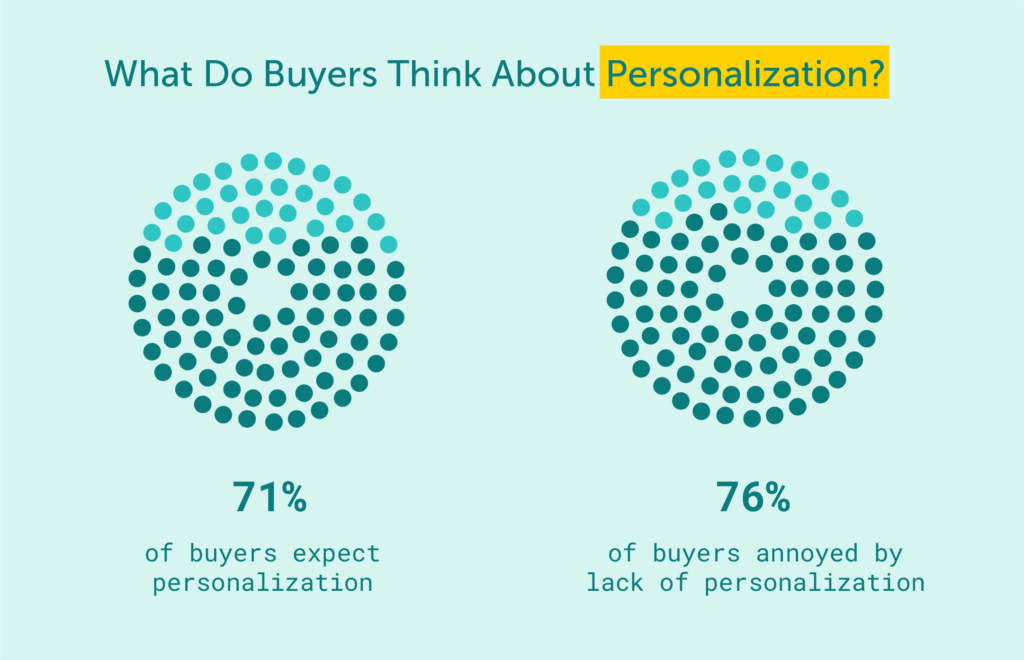
Mail merge transforms how businesses communicate by combining efficiency with personalization. When implemented correctly, it saves hours of manual work while creating communications that feel individually crafted. The technology continues to evolve in 2025, with improved integration between platforms and more intelligent personalization options.
As you implement mail merge in your workflow, focus first on data quality and thorough testing. Even simple personalization improves response rates significantly compared to generic messages. Start with basic applications before exploring advanced features like conditional content or multiple data sources.
For organizations sending large volumes of personalized emails, it’s time to move beyond the desktop. A specialized delivery solution like EmailLabs lets you implement a professional, server-side mail merge. With our Message Templates feature, you can create your templates in our panel, then use our API to send personalized data for thousands of users. We handle the merging and ensure your messages reach their intended recipients with superior deliverability, detailed analytics, and built-in authentication protocols. It’s the power of mail merge, reimagined for the demands of 2025.

We are a group of specialists involved in developing substantive and engaging articles on emails and their deliverability. Our value is to be part of the team that creates the EmailLabs service on a daily basis, making our content fully responsive to our audience's questions and problems. Do you have any questions? We look forward to hearing from you :)
See more articles
We live in a world where your customers switch seamlessly between laptops, smartphones, and tablets. They navigate a complex digital ecosystem – checking emails, using mobile apps, and reacting...
We are delighted to announce that Vercom S.A., the company behind the EmailLabs project, has successfully completed the ISO 22301 certification process. This significant achievement underscores our commitment to...

EmailLabs, as part of the Vercom group, proudly announces its full commitment to aligning its ICT services with the latest cybersecurity standards. In response to dynamically changing regulations, the...
We are pleased to announce that MessageFlow, a product from the Vercom S.A. group, has received the prestigious CSA (Certified Senders Alliance) Certification. This recognition not only underscores the...
Compliance & Security, Email Marketing, Security
TL;DR DMARCbis is now official: After years of work by the IETF working group, the DMARC specification has been formally updated. Three new documents, RFC 9989, RFC 9990, and...
Email Marketing, Gmail, New feature
TL;DR Gmail Live: a new feature enabling natural language voice search in the inbox, powered by the Gemini model. AI Inbox and AI Overviews: a revamped inbox interface featuring...
Best practices, Best practices, Email Authentication
TL;DR: Strategic Takeaways for C-Level and Marketing Leaders DKIM2 is not a minor DNS configuration update. It is a systemic response to two critical business problems: Replay attacks: scenarios...
Compliance & Security, Email Marketing, Security
TL;DR DMARCbis is now official: After years of work by the IETF working group, the DMARC specification has been formally updated. Three new documents, RFC 9989, RFC 9990, and...
Email Marketing, Gmail, New feature
TL;DR Gmail Live: a new feature enabling natural language voice search in the inbox, powered by the Gemini model. AI Inbox and AI Overviews: a revamped inbox interface featuring...
Best practices, Best practices, Email Authentication
TL;DR: Strategic Takeaways for C-Level and Marketing Leaders DKIM2 is not a minor DNS configuration update. It is a systemic response to two critical business problems: Replay attacks: scenarios...
AI, Antispam, Best practices, Deliverability
C-Level TL;DR: Strategic Takeaways Recipient consent as a foundation (Item 0): Sending email messages without explicit recipient consent (opt-in) poses a significant risk to your sending infrastructure. Attempting to...
AI, Antispam, Best practices, Deliverability
Executive TL;DR: Strategic Takeaways Deliverability Schism: The growing divide between sales automation technologies and the security standards enforced by major global mailbox providers (collectively referred to as MAGY) is...
Modern email systems no longer treat the primary inbox as the default destination for every message. The final classification of an email is the result of a multistage evaluation...
Best practices, Maile marketingowe, Marketing E-mails, Transactional Emails
Mass email sending is a critical strategy for business owners, marketers, developers, and nonprofit managers looking to scale their outreach. Whether you are announcing a new product feature, distributing...
Best practices, Marketing E-mails
Customer feedback is the fuel for business growth, but gathering it effectively requires more than just a list of questions. Survey emails remain the most direct channel for understanding...
Best practices, Email Marketing, Pytania i odpowiedzi
Mail merge combines a template document with data to create personalized communications. This technique saves time by automatically generating individualized letters, emails, and labels without manual entry. What Is...

