One safe and easy way to keep track of your digital interactions is to save emails as PDFs. However, do you know the best ways to easily turn your emails into PDF files?
In this article, we’ll look into the different ways you can do to turn your emails into accessible PDF files. Let’s start!
If you want to convert your Outlook email into PDF format, follow these easy steps:
Step 1: In Outlook, navigate and click your email.
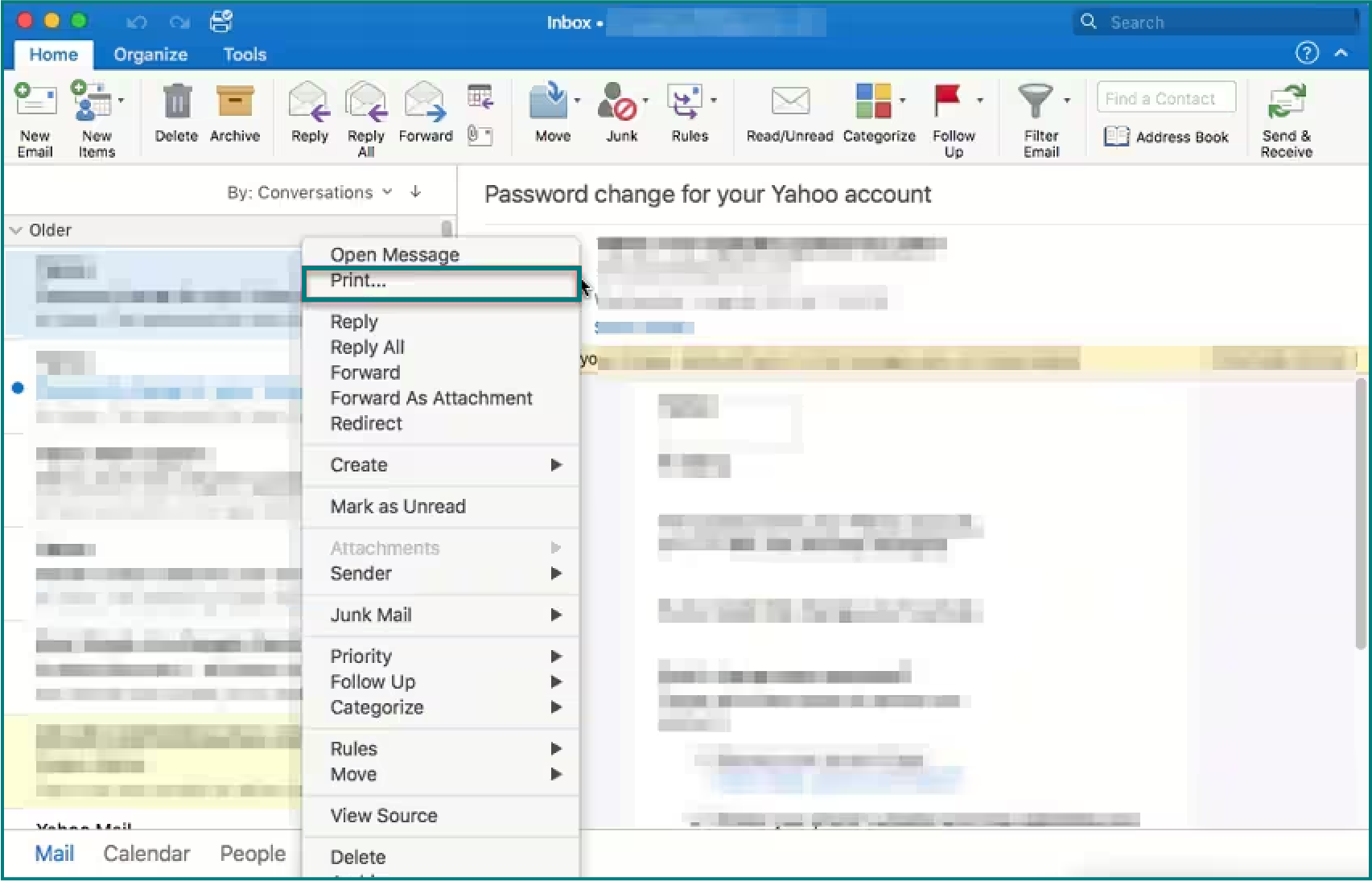
Step 2: Select File and click Print in the dialog box.
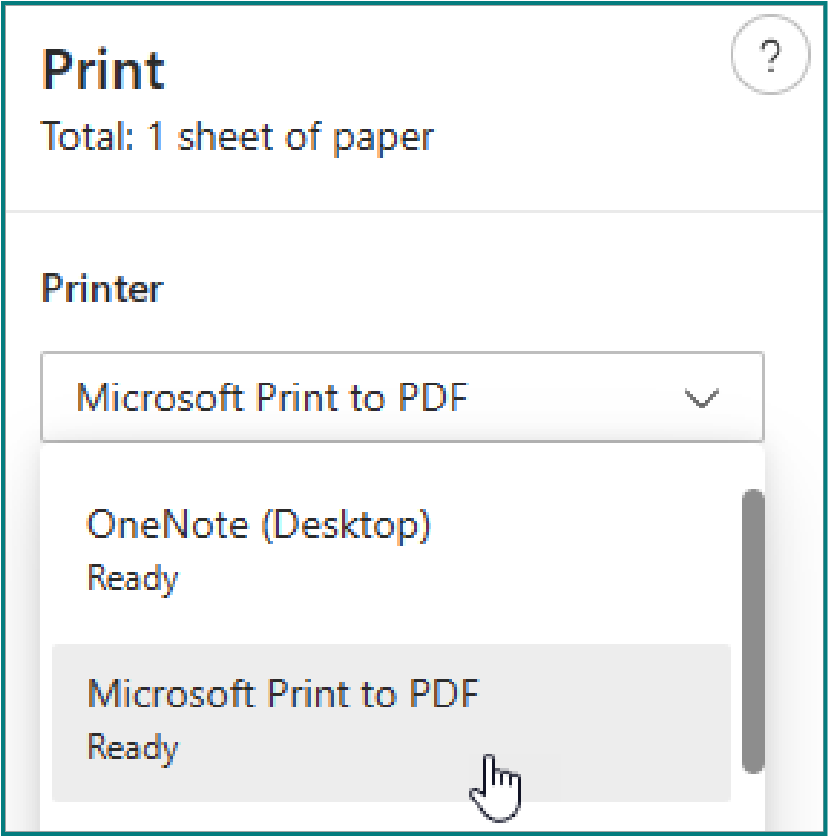
Step 3: From the Printer drop-down, select Microsoft Print to PDF.
Step 4: Choose Print, then choose a folder and title to save your new email PDF.
Step 5: Click Save to store it on your computer.
You can alternatively utilize the Print function on a Mac to save an Outlook email into PDF. Follow these steps:
Step 1: Open Outlook and access the email you wish to convert to PDF.
Step 2: Navigate to File and select Print and confirm your choice.
Step 3: Click the drop-down menu and choose Save as PDF.
Step 4: Name the PDF file and save the Outlook message as PDF.
Save your email as PDF using Gmail by following the steps below:
Step 1: Open your Gmail inbox.
Step 2: Open the email you want to save to PDF.
Step 3: Click the print icon.
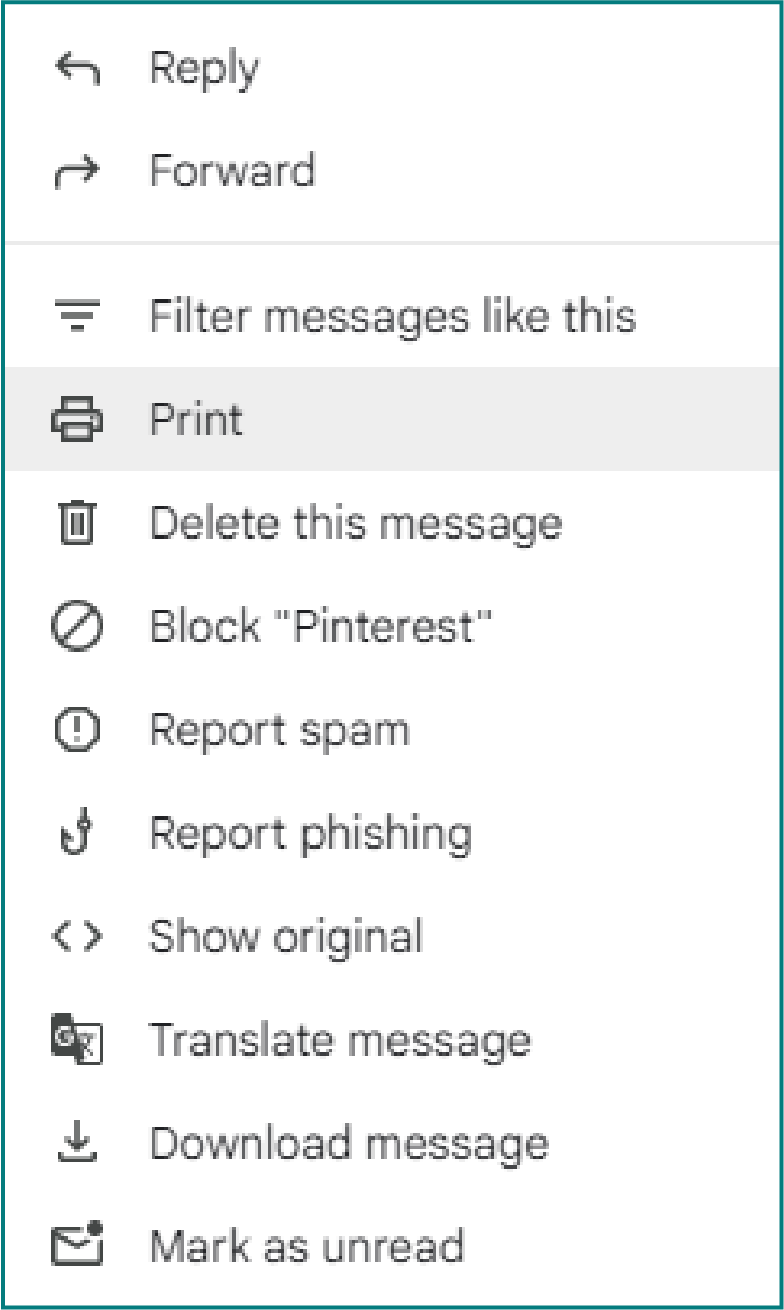
If there is no Print icon on your screen, click the three dots to bring up the Options menu and click Print.
Step 4: In the drop-down menu where the name of your printer is displayed, left-click and select save as PDF option.
Step 5: After selecting this option, click the save button in the bottom right corner.
Step 6: Choose a location to save the PDF and rename your document.
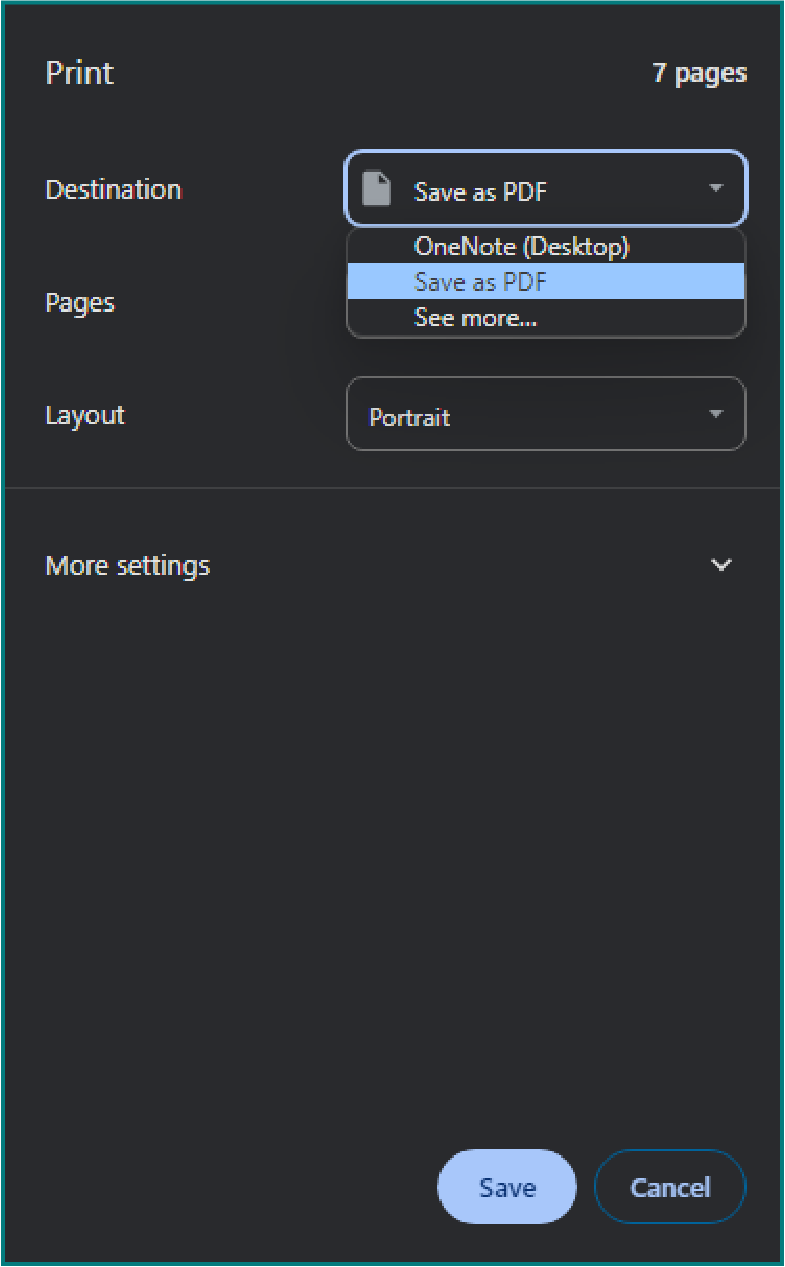
Saving your emails as PDFs with Adobe Acrobat is simpler than you might think. It’s a great way to keep important messages safe and accessible. Here’s how you can do it, step by step.
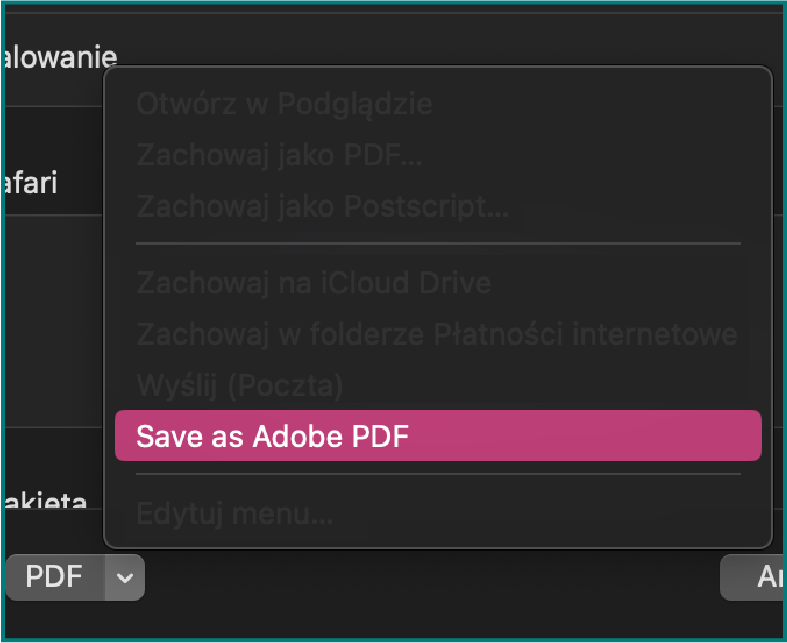
Just like that, your email is now a handy PDF file. You can open it, share it, or keep it for reference without worrying about losing access to your email account or deleting the message by accident.
Adobe Acrobat also lets you edit the PDFs, too, so in case you need to add comments and annotate, you can easily do so with this software.
Saving multiple emails as PDFs can be a lifesaver when it comes to keeping important information at your fingertips.
Remember, while these methods should work for saving individual or small batches of emails as PDFs, consider using dedicated email management or backup software for larger tasks.
These programs can streamline the process and offer more flexibility with your email storage and archiving needs.
To save multiple emails together, you can use a service like Google Docs:
Step 1. Open each email and copy its content.
Step 2. Paste the content into a Google Docs document.
Step 3. Once all emails are compiled, go to File > Download > PDF Document (.pdf).
You can also screenshot each email and convert these images to PDF using a free tool available on the internet, such as Ilovepdf.
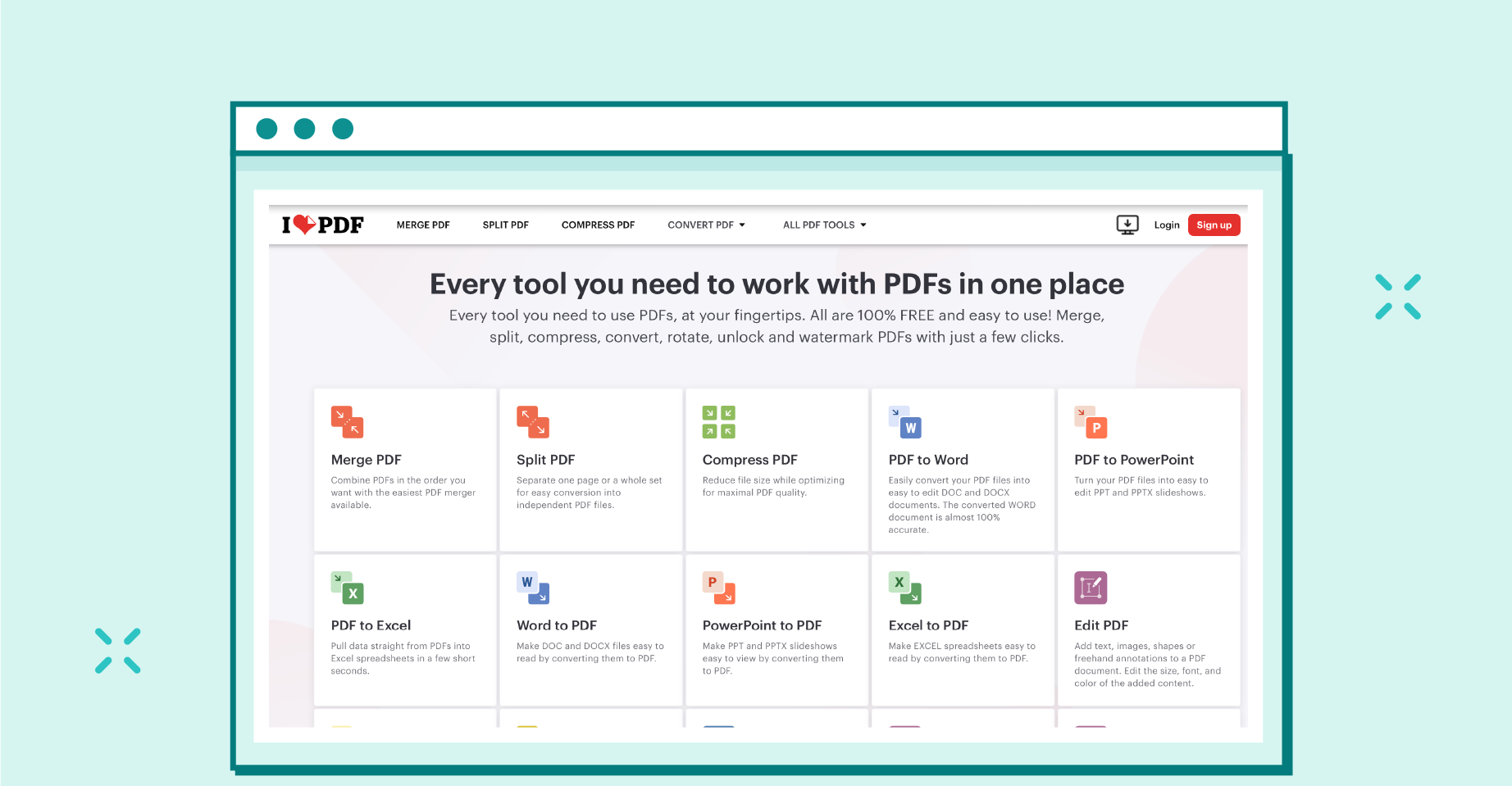
For multiple emails, you may have to repeat the process presented above for each email as Outlook does not support batch saving of emails as PDFs directly. Then, you may compile these PDFs and save them as one big PDF file using online converters.
Saving your emails as PDFs brings a host of advantages that can streamline your communication and document handling. Here’s why transforming your emails into PDF format can be a game-changer.
Once an email is saved as a PDF, you can open it on any device with a PDF reader. This feature breaks down barriers caused by different operating systems or devices, ensuring that the information you share reaches anyone, anywhere, just as you intended.
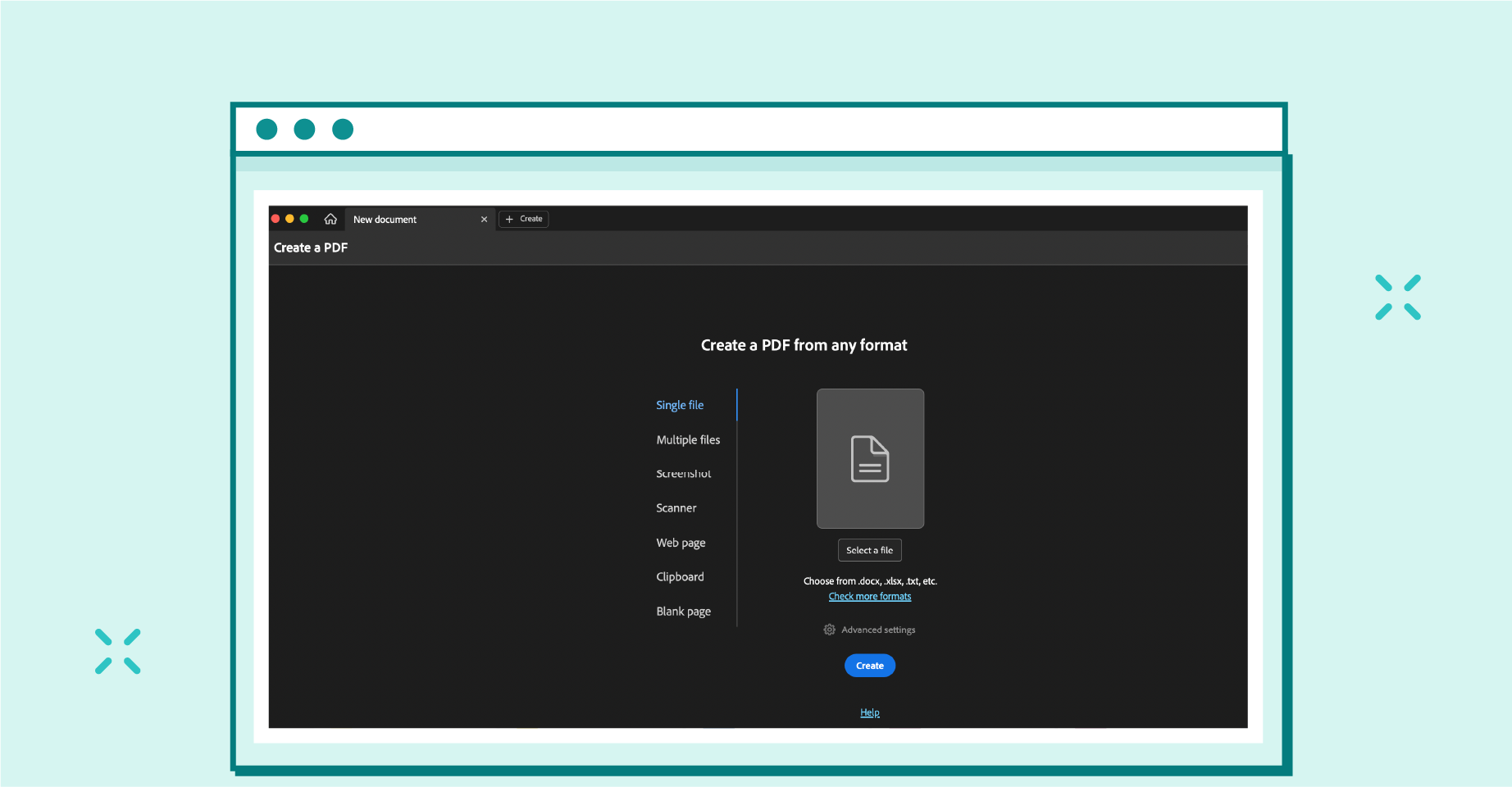
Adobe Acrobat is a family of software applications and services developed by Adobe Inc. primarily used for creating, editing, managing, and viewing Portable Document Format (PDF) files.
Saving your email as a PDF ensures that your communication remains professional and true to its original design.
Whether it’s the layout, fonts, images, or colors, converting emails to PDF secures every detail. This is crucial for maintaining the impact of your message across various platforms.
Offline access to emails offers convenience beyond measure.
Saving emails as PDFs will make sure you have your important communications at hand anytime, without the need for an internet connection. This is particularly useful for travelers or those working in areas with unstable internet.
When preserving emails for legal documentation, converting them into PDF format ensures their original integrity and Accessibility. Here are the two key benefits of saving emails as PDFs for legal purposes:
Converting emails into PDF format streamlines archiving and organization processes, ensuring easy access and efficient management of important correspondence.
When you save emails as PDFs, you create a universal file format that preserves the original content and layout, making it easier to retrieve specific information when needed, which is especially useful for important emails in your inbox that you want to keep for future reference.
Maximize your email deliverability and security with EmailLabs!
PDFs simplify the process. Emails merged into a single PDF document make collective reviewing straightforward.
You can also share your comments or even annotate the email before sharing, facilitating clearer discussions and feedback among team members.
Converting your emails to PDF format can be a practical solution when saving space on your device or system.
Here’s why this reduction in file size can benefit you:
Follow these best practices will help you create efficient and professional-looking PDF versions of your emails:
Consider adding key details such as sender information and date when saving emails as PDFs for effective organization and easy retrieval. This practice streamlines your PDF management process and enhances overall efficiency.
To make the most of including metadata in your PDF emails, remember these key points:
Appropriately label and categorize your saved emails as PDFs for optimal organization and easy retrieval,
Here are two essential tips to help you organize and label your PDFs effectively:
When saving emails as PDFs, be mindful of the file size and consider utilizing compression techniques for efficient storage and sharing.
Large PDF files can be cumbersome to send and take up unnecessary space on your device.
To reduce the file size, you can use compression tools that maintain the quality of the content while making the file more manageable.
Most PDF readers have built-in options for compressing files, allowing you to adjust the quality settings according to your needs.
A Handy Guide to Sending Large Files Via Email – 4 Easy Methods You Can Try
Ensure the accuracy of the content before saving emails as PDFs to maintain the integrity of the information being preserved.
Here are three best practices to help you verify the content accuracy effectively:
To enhance the security of sensitive information when saving emails as PDFs, consider encrypting the document with a password. This extra layer of protection helps ensure that only authorized individuals can access the content.
When setting a password, use a potent combination of letters, numbers, and special characters to increase security.
CyberLabs #2 – Password security, the reason why you should create strong passwords
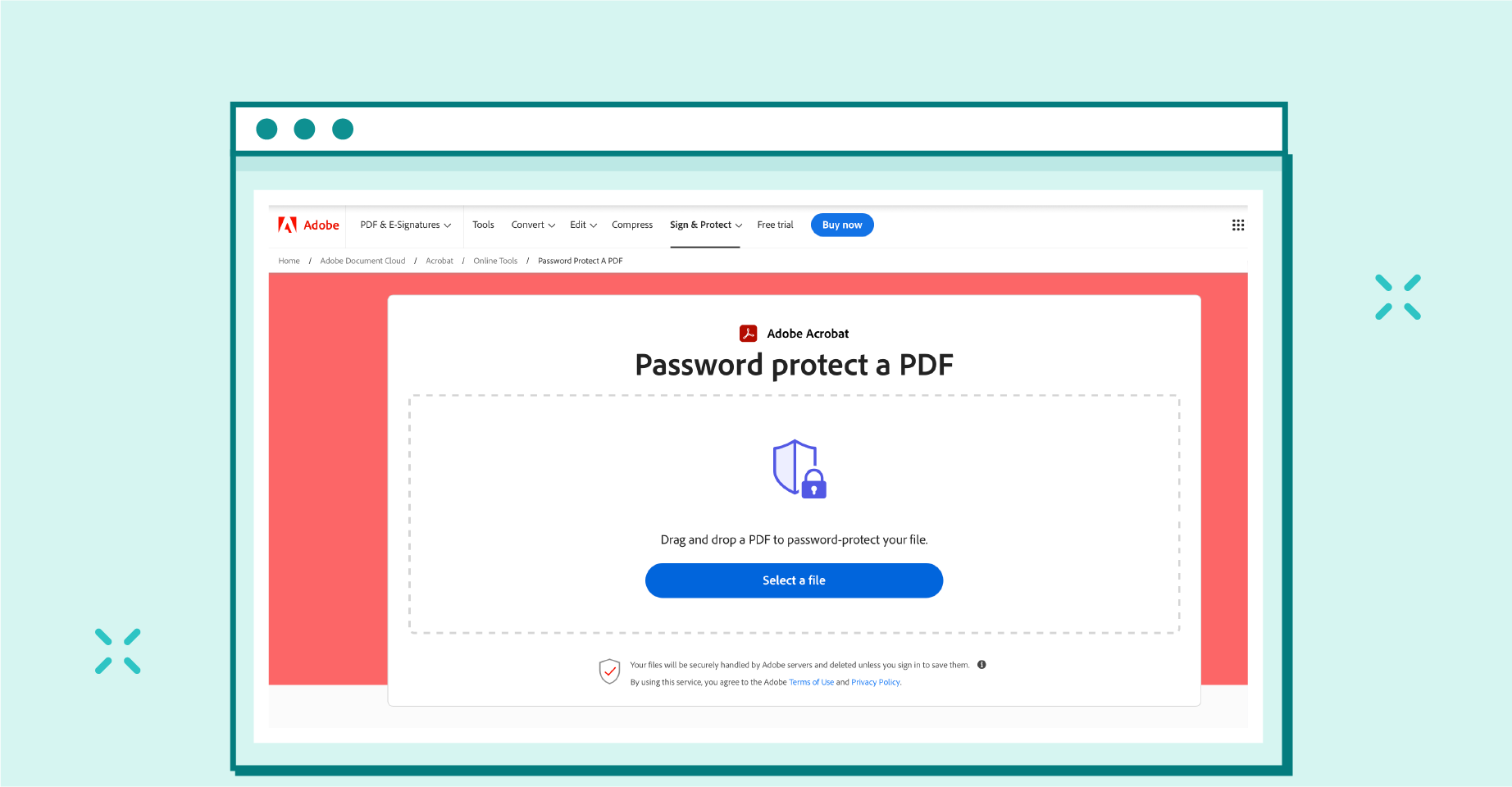
Add PDF password protection with the Adobe Acrobat online tool.
Additionally, avoid using easily guessable information like birthdays or common words. Remember to store the password securely and share it only with trusted parties.
Consider incorporating alt text for images in the email before saving it as a PDF to ensure accessibility for individuals using screen readers.
Here are three essential practices to maintain accessibility when saving emails as PDFs:
So, next time you save an essential email for future reference or sharing, remember these simple steps to save it as a PDF. Not only will you ensure the email’s formatting remains intact, but you’ll also have a convenient way to access it whenever you need.
With the benefits of saving emails as PDFs, you can streamline your email management process and improve your overall communication efficiency.
And, if you want to ensure that sending emails doesn’t give you a headache, try EmailLabs. This powerful software will help you manage email campaigns effectively and will solve your issues with sender reputation.
Maximize your email deliverability and security with EmailLabs!
To copy an entire email in Gmail, you just need to open the email, select all the text inside (Ctrl+A for Windows, Command+A for Mac), and then copy it (Ctrl+C for Windows, Command+C for Mac).
Yes, you can save all your emails to your computer using Google Takeout.
To download Gmail emails to your hard drive, you can use a feature called Google Takeout. It allows you to download all your data, including emails, from Google products.
If you can’t save an email as a PDF in Gmail, it might be due to your browser settings or an outdated browser version. Generally, you should be able to open the email, click on the print icon, then choose “Save as PDF” in the destination printer options.
If Outlook doesn’t have the built-in option to save an email as a PDF, you can use third-party tools or services to convert the email to PDF format.

Head of Marketing
As an Enterprise B2B Marketing Manager with a background in the email deliverability industry, I bring experience in crafting marketing strategies that boost engagement rates and optimize performance for large-scale enterprises. My expertise lies in merging data-driven insights with innovative marketing techniques to ensure that every campaign not only reaches its intended audience but also engages and converts. 🎯 In private - love animals more.. than everything. :)
See more articles
We live in a world where your customers switch seamlessly between laptops, smartphones, and tablets. They navigate a complex digital ecosystem – checking emails, using mobile apps, and reacting...
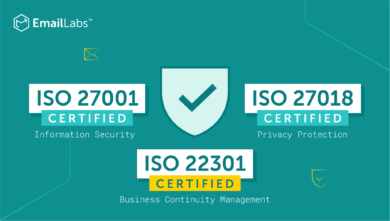
We are delighted to announce that Vercom S.A., the company behind the EmailLabs project, has successfully completed the ISO 22301 certification process. This significant achievement underscores our commitment to...

EmailLabs, as part of the Vercom group, proudly announces its full commitment to aligning its ICT services with the latest cybersecurity standards. In response to dynamically changing regulations, the...
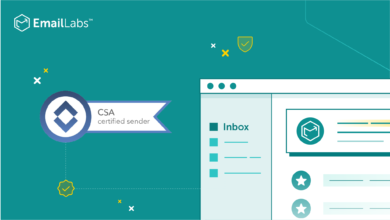
We are pleased to announce that MessageFlow, a product from the Vercom S.A. group, has received the prestigious CSA (Certified Senders Alliance) Certification. This recognition not only underscores the...
Compliance & Security, Email Marketing, Security
TL;DR DMARCbis is now official: After years of work by the IETF working group, the DMARC specification has been formally updated. Three new documents, RFC 9989, RFC 9990, and...
Email Marketing, Gmail, New feature
TL;DR Gmail Live: a new feature enabling natural language voice search in the inbox, powered by the Gemini model. AI Inbox and AI Overviews: a revamped inbox interface featuring...
Best practices, Best practices, Email Authentication
TL;DR: Strategic Takeaways for C-Level and Marketing Leaders DKIM2 is not a minor DNS configuration update. It is a systemic response to two critical business problems: Replay attacks: scenarios...
Compliance & Security, Email Marketing, Security
TL;DR DMARCbis is now official: After years of work by the IETF working group, the DMARC specification has been formally updated. Three new documents, RFC 9989, RFC 9990, and...
Email Marketing, Gmail, New feature
TL;DR Gmail Live: a new feature enabling natural language voice search in the inbox, powered by the Gemini model. AI Inbox and AI Overviews: a revamped inbox interface featuring...
Best practices, Best practices, Email Authentication
TL;DR: Strategic Takeaways for C-Level and Marketing Leaders DKIM2 is not a minor DNS configuration update. It is a systemic response to two critical business problems: Replay attacks: scenarios...
AI, Antispam, Best practices, Deliverability
C-Level TL;DR: Strategic Takeaways Recipient consent as a foundation (Item 0): Sending email messages without explicit recipient consent (opt-in) poses a significant risk to your sending infrastructure. Attempting to...
AI, Antispam, Best practices, Deliverability
Executive TL;DR: Strategic Takeaways Deliverability Schism: The growing divide between sales automation technologies and the security standards enforced by major global mailbox providers (collectively referred to as MAGY) is...
Modern email systems no longer treat the primary inbox as the default destination for every message. The final classification of an email is the result of a multistage evaluation...
Best practices, Maile marketingowe, Marketing E-mails, Transactional Emails
Mass email sending is a critical strategy for business owners, marketers, developers, and nonprofit managers looking to scale their outreach. Whether you are announcing a new product feature, distributing...
Best practices, Marketing E-mails
Customer feedback is the fuel for business growth, but gathering it effectively requires more than just a list of questions. Survey emails remain the most direct channel for understanding...
Best practices, Email Marketing, Pytania i odpowiedzi
Mail merge combines a template document with data to create personalized communications. This technique saves time by automatically generating individualized letters, emails, and labels without manual entry. What Is...


